">%0A<path id="Background" d="M0 35.2C0 22.8788 0 16.7183 2.39786 12.0122C4.50707 7.87264 7.87264 4.50707 12.0122 2.39786C16.7183 0 22.8788 0 35.2 0H64.8C77.1212 0 83.2817 0 87.9878 2.39786C92.1274 4.50707 95.4929 7.87264 97.6021 12.0122C100 16.7183 100 22.8788 100 35.2V64.8C100 77.1212 100 83.2817 97.6021 87.9878C95.4929 92.1274 92.1274 95.4929 87.9878 97.6021C83.2817 100 77.1212 100 64.8 100H35.2C22.8788 100 16.7183 100 12.0122 97.6021C7.87264 95.4929 4.50707 92.1274 2.39786 87.9878C0 83.2817 0 77.1212 0 64.8V35.2Z" fill="%23FFFC00"/>%0A<g id="Union">%0A<path d="M48.8333 20.4466C50.8166 20.4466 52.7532 20.6368 54.6299 20.9967C56.0599 21.2734 56.8799 22.7333 56.5033 24.14C56.1166 25.5766 54.6268 26.4033 53.1602 26.1501C51.7535 25.9067 50.31 25.7799 48.8333 25.7799C34.9333 25.7799 23.6667 37.0466 23.6667 50.9466C23.6667 64.8466 34.9333 76.1133 48.8333 76.1133C62.7333 76.1133 74 64.8466 74 50.9466C74 49.6067 73.8967 48.2934 73.6934 47.0101C73.4634 45.5534 74.2935 44.09 75.7168 43.71C77.1401 43.33 78.6135 44.1735 78.8701 45.6201C79.1734 47.3501 79.3333 49.13 79.3333 50.9466C79.3333 67.7899 65.6767 81.4466 48.8333 81.4466C31.99 81.4466 18.3333 67.7933 18.3333 50.9466C18.3334 34.1 31.99 20.4466 48.8333 20.4466Z" fill="black"/>%0A<path d="M58.7334 54.0667C59.3434 54.0668 59.8333 54.5001 59.8333 55.0534C59.8333 60.4967 54.92 64.9066 48.8333 64.9066C42.7467 64.9066 37.8334 60.4967 37.8333 55.0534C37.8333 54.5001 38.3233 54.0668 38.9333 54.0667H58.7334Z" fill="black"/>%0A<path d="M42.11 40.5732C44.97 40.5733 46.3867 43.8468 46.3867 46.8835C46.3867 48.28 46.19 49.0032 45.5801 49.0033C45.3567 49.0033 45.0834 48.7199 44.7334 48.3633C44.1267 47.74 43.29 46.8835 42.11 46.8835C40.93 46.8835 40.0967 47.7399 39.4867 48.3633C39.1367 48.7199 38.8633 49.0033 38.64 49.0033C38.0034 49.0032 37.8333 48.2567 37.8333 46.8835C37.8333 43.8501 39.25 40.5732 42.11 40.5732Z" fill="black"/>%0A<path d="M55.5534 40.5732C58.4134 40.5733 59.8301 43.8468 59.8301 46.8835C59.8301 48.28 59.6333 49.0032 59.0234 49.0033C58.8001 49.0033 58.5267 48.7199 58.1768 48.3633C57.5701 47.74 56.7334 46.8835 55.5534 46.8835C54.3734 46.8835 53.54 47.7399 52.93 48.3633C52.58 48.7199 52.3067 49.0033 52.0833 49.0033C51.4467 49.0033 51.2767 48.2567 51.2767 46.8835C51.2767 43.8501 52.6934 40.5732 55.5534 40.5732Z" fill="black"/>%0A<path d="M69.4004 19.0801C69.8437 18.0801 71.2604 18.0801 71.6771 19.0801L74.0104 25.1602C74.1504 25.5501 74.4538 25.8268 74.8171 25.9668L80.9004 28.3268C81.9003 28.7702 81.9004 30.1865 80.9004 30.6032L74.8171 32.9365C74.4571 33.0765 74.1504 33.3802 74.0104 33.7435L71.6771 39.8232C71.2338 40.8232 69.8171 40.8232 69.4004 39.8232L67.0671 33.7435C66.9271 33.3835 66.6238 33.0765 66.2604 32.9365L60.1771 30.6032C59.1772 30.1598 59.1772 28.7435 60.1771 28.3268L66.2604 25.9668C66.6204 25.8268 66.927 25.5234 67.0671 25.1602L69.4004 19.0801Z" fill="black"/>%0A</g>%0A</g>%0A<defs>%0A<clipPath id="clip0_35_17">%0A<rect width="100" height="100" fill="white"/>%0A</clipPath>%0A</defs>%0A</svg>%0A)

Make a Lens that morphs your face live
Animated FaceGen builds a Lens that changes your face while the camera is running. You describe the change itself, not the finished face, and it takes two waits rather than one.
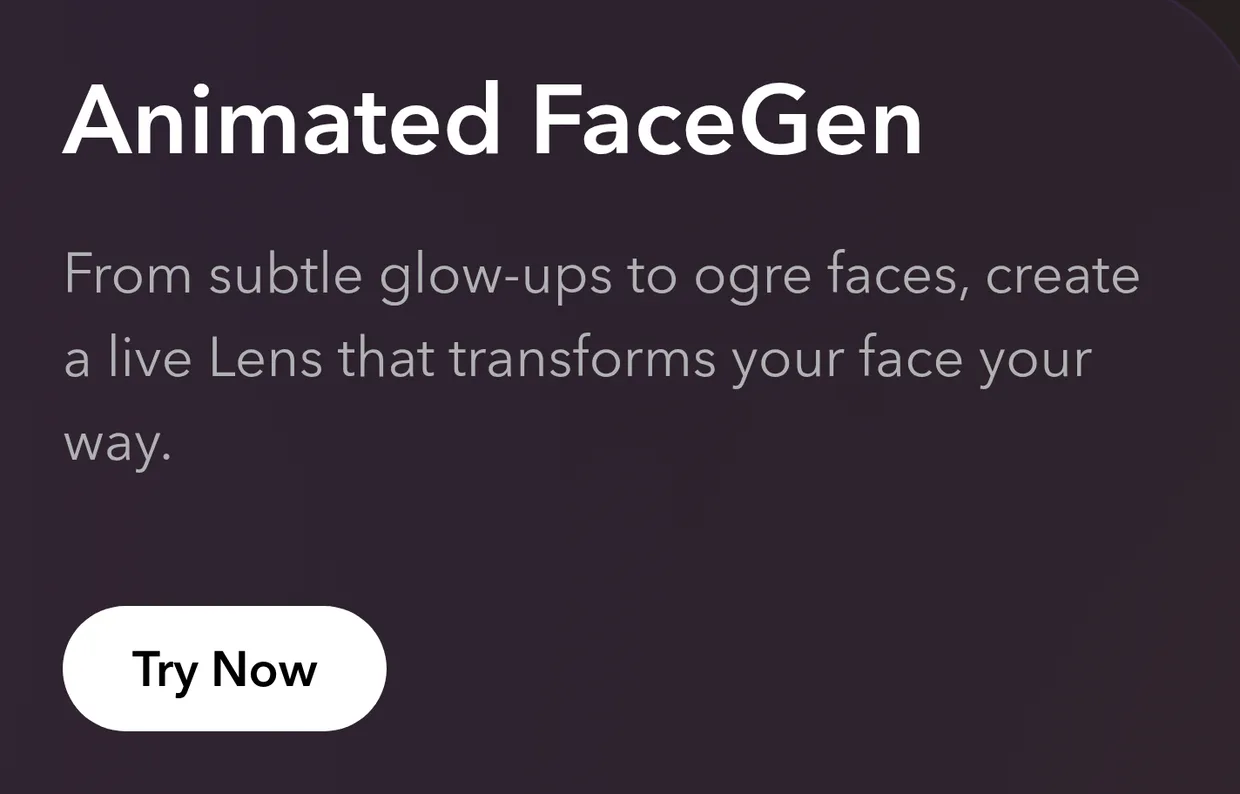
Sign in at easylens.snapchat.com and open the Gen AI suite at /assets. Animated FaceGen is the second card, behind AI Edits, on the one that reads From subtle glow-ups to ogre faces, create a live Lens that transforms your face your way. Try Now opens it, and /assets/animated-facegen is the same tool on a URL you can bookmark.
Read the two times in the header before you start, because this tool has two of them and most have one. Preview generation: ~1 minute · Real-time on-device Lens: 2 hours. The first is the clip you look at to decide whether the idea works. The second is the Lens that runs on a phone, in real time, on a face that is not yours. Plan the afternoon around the second number.

Write the change, not the destination. The one required field is Transition, and it asks you to Describe how your face should transition to the final look. That is the opposite of most of the suite: Photo Duo wants the finished picture and this wants the journey to it. "Slowly turn my face to cracked marble as moss creeps across my cheeks" gives it a sequence to animate; "make me a marble statue" gives it one frame and leaves the rest to the model.
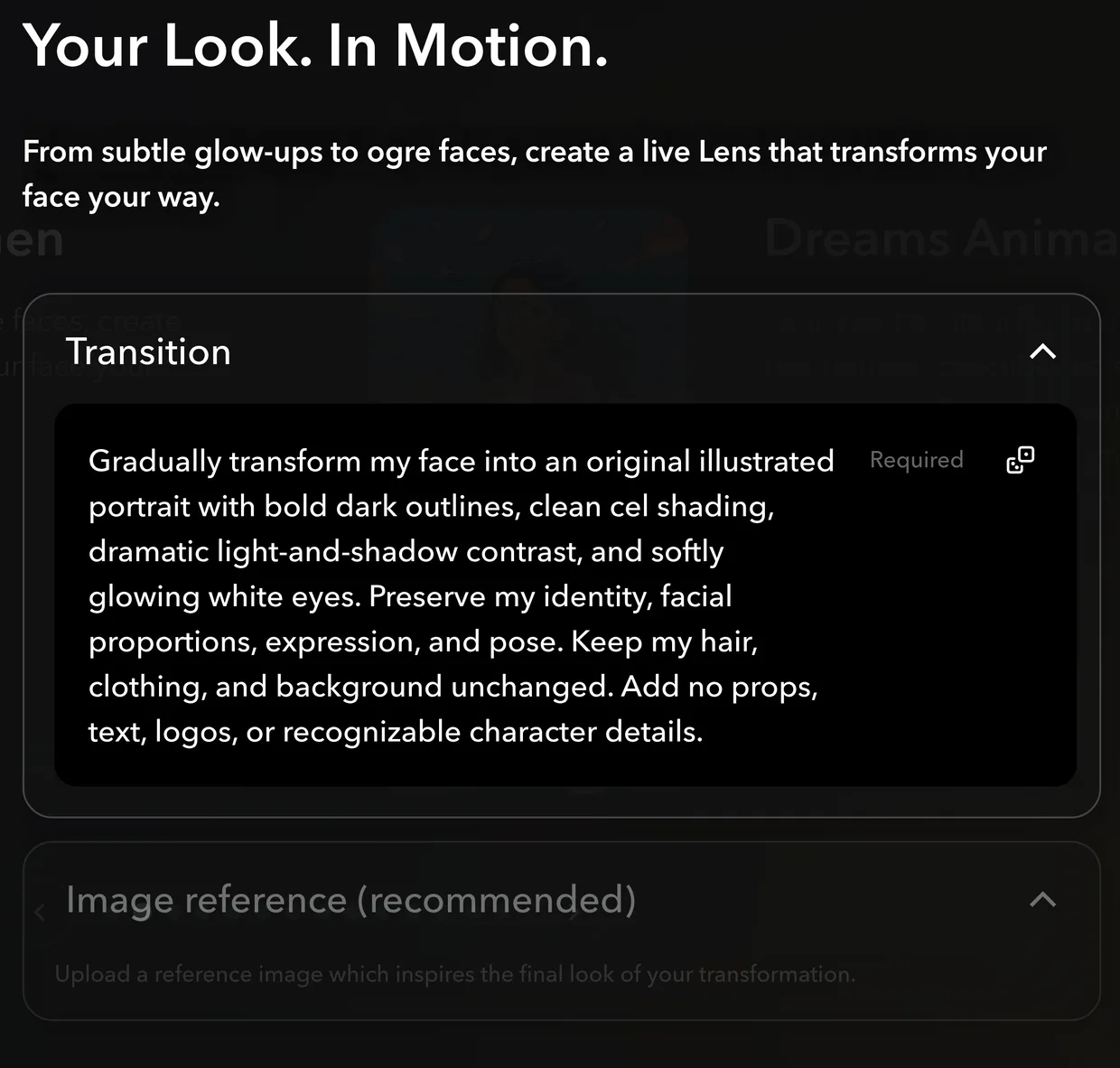
Borrow a transition if the blank box is the hard part. Six examples sit under the preview, and tapping one loads that example's full prompt into the Transition box ready to edit. The arrows either side step between them, Shuffle Transition deals you a different one, and once you have changed the text a Restore original prompt control appears to put it back.
Add a picture of the look if you have one. Image reference (recommended) is the section under Transition, and it asks you to Upload a reference image which inspires the final look of your transformation. Recommended is not required, and the reference does not replace the writing: Transition stays marked Required whether or not you attach one, because the picture says where you end up and only the words say how you get there.
Check the line along the bottom before you build. It prints the sentence that actually gets sent, Use long generation to make a FaceGen Live effect, with your transition on the end. FaceGen Live is the same tool under its engineering name, so that line is right rather than a mistake. If the sentence does not describe the change in your head, fix the Transition rather than the Lens.

Tap Create My Lens, then change one thing per message. A follow-up such as "make the moss spread from the jaw instead of the cheeks" gives Easy Lens something to act on, and "make it better" does not. You can also ask for variations of an asset, or drag things around on the preview with Visual Edits, without writing another prompt.
Tap Publish when the change reads the way you meant it. Easy Lens writes a name, an icon and a description, you fix whatever does not fit, and then you submit for Snap's review. Once it is live, the Lens runs the same transformation on whoever opens it.
You have a Lens that changes a face on camera the way you described it, and you know the number that decides your afternoon: about a minute for the preview, about two hours for the real-time Lens.