">%0A<path id="Background" d="M0 35.2C0 22.8788 0 16.7183 2.39786 12.0122C4.50707 7.87264 7.87264 4.50707 12.0122 2.39786C16.7183 0 22.8788 0 35.2 0H64.8C77.1212 0 83.2817 0 87.9878 2.39786C92.1274 4.50707 95.4929 7.87264 97.6021 12.0122C100 16.7183 100 22.8788 100 35.2V64.8C100 77.1212 100 83.2817 97.6021 87.9878C95.4929 92.1274 92.1274 95.4929 87.9878 97.6021C83.2817 100 77.1212 100 64.8 100H35.2C22.8788 100 16.7183 100 12.0122 97.6021C7.87264 95.4929 4.50707 92.1274 2.39786 87.9878C0 83.2817 0 77.1212 0 64.8V35.2Z" fill="%23FFFC00"/>%0A<g id="Union">%0A<path d="M48.8333 20.4466C50.8166 20.4466 52.7532 20.6368 54.6299 20.9967C56.0599 21.2734 56.8799 22.7333 56.5033 24.14C56.1166 25.5766 54.6268 26.4033 53.1602 26.1501C51.7535 25.9067 50.31 25.7799 48.8333 25.7799C34.9333 25.7799 23.6667 37.0466 23.6667 50.9466C23.6667 64.8466 34.9333 76.1133 48.8333 76.1133C62.7333 76.1133 74 64.8466 74 50.9466C74 49.6067 73.8967 48.2934 73.6934 47.0101C73.4634 45.5534 74.2935 44.09 75.7168 43.71C77.1401 43.33 78.6135 44.1735 78.8701 45.6201C79.1734 47.3501 79.3333 49.13 79.3333 50.9466C79.3333 67.7899 65.6767 81.4466 48.8333 81.4466C31.99 81.4466 18.3333 67.7933 18.3333 50.9466C18.3334 34.1 31.99 20.4466 48.8333 20.4466Z" fill="black"/>%0A<path d="M58.7334 54.0667C59.3434 54.0668 59.8333 54.5001 59.8333 55.0534C59.8333 60.4967 54.92 64.9066 48.8333 64.9066C42.7467 64.9066 37.8334 60.4967 37.8333 55.0534C37.8333 54.5001 38.3233 54.0668 38.9333 54.0667H58.7334Z" fill="black"/>%0A<path d="M42.11 40.5732C44.97 40.5733 46.3867 43.8468 46.3867 46.8835C46.3867 48.28 46.19 49.0032 45.5801 49.0033C45.3567 49.0033 45.0834 48.7199 44.7334 48.3633C44.1267 47.74 43.29 46.8835 42.11 46.8835C40.93 46.8835 40.0967 47.7399 39.4867 48.3633C39.1367 48.7199 38.8633 49.0033 38.64 49.0033C38.0034 49.0032 37.8333 48.2567 37.8333 46.8835C37.8333 43.8501 39.25 40.5732 42.11 40.5732Z" fill="black"/>%0A<path d="M55.5534 40.5732C58.4134 40.5733 59.8301 43.8468 59.8301 46.8835C59.8301 48.28 59.6333 49.0032 59.0234 49.0033C58.8001 49.0033 58.5267 48.7199 58.1768 48.3633C57.5701 47.74 56.7334 46.8835 55.5534 46.8835C54.3734 46.8835 53.54 47.7399 52.93 48.3633C52.58 48.7199 52.3067 49.0033 52.0833 49.0033C51.4467 49.0033 51.2767 48.2567 51.2767 46.8835C51.2767 43.8501 52.6934 40.5732 55.5534 40.5732Z" fill="black"/>%0A<path d="M69.4004 19.0801C69.8437 18.0801 71.2604 18.0801 71.6771 19.0801L74.0104 25.1602C74.1504 25.5501 74.4538 25.8268 74.8171 25.9668L80.9004 28.3268C81.9003 28.7702 81.9004 30.1865 80.9004 30.6032L74.8171 32.9365C74.4571 33.0765 74.1504 33.3802 74.0104 33.7435L71.6771 39.8232C71.2338 40.8232 69.8171 40.8232 69.4004 39.8232L67.0671 33.7435C66.9271 33.3835 66.6238 33.0765 66.2604 32.9365L60.1771 30.6032C59.1772 30.1598 59.1772 28.7435 60.1771 28.3268L66.2604 25.9668C66.6204 25.8268 66.927 25.5234 67.0671 25.1602L69.4004 19.0801Z" fill="black"/>%0A</g>%0A</g>%0A<defs>%0A<clipPath id="clip0_35_17">%0A<rect width="100" height="100" fill="white"/>%0A</clipPath>%0A</defs>%0A</svg>%0A)

Make a Lens that turns a photo into a short AI clip
AI Clips builds a Lens that turns one photo into a five-second video of a scene you describe. You write the scene, choose what kind of clip comes back, and the tool puts the wait at 20 seconds.
Sign in at easylens.snapchat.com and open the Gen AI suite at /assets. AI Clips is the card that reads Turn any photo into a cinematic moment with AI Clips—a video generation tool that transforms images into dynamic 5-second stories. Try Now opens it.

Read the header before you write anything. Average Processing Time: 20 seconds is the wait, and the line under the title says what you are making: Combine a photo with a creative prompt to generate dynamic 5-second video stories. The card says whose photo it is, a user's photo: the prompt is yours, and the photo comes from whoever uses the Lens.

Pick a Concept first. Freestyle gives you one box, Describe the scene, to write the whole clip in, and it is the one this tutorial uses. Interaction, Camera Reveal, Special Effects and Character Transformation sit beside it.
Start from an example rather than a blank box. The box opens with one already in it, the first of five under the preview, and tapping another loads its whole scene ready to change. The arrows either side of the preview step through them, and the dice in the corner of the box, Shuffle Describe the scene, deals a different one.
Write the scene the way the examples do: what appears, what the person does, and what stays the same. "A worn leather cowboy hat appears on the person's head… A tumbleweed rolls past as they tip their hat to the camera and grin. Preserve their face and hair." An empty box greys out Create My Lens.
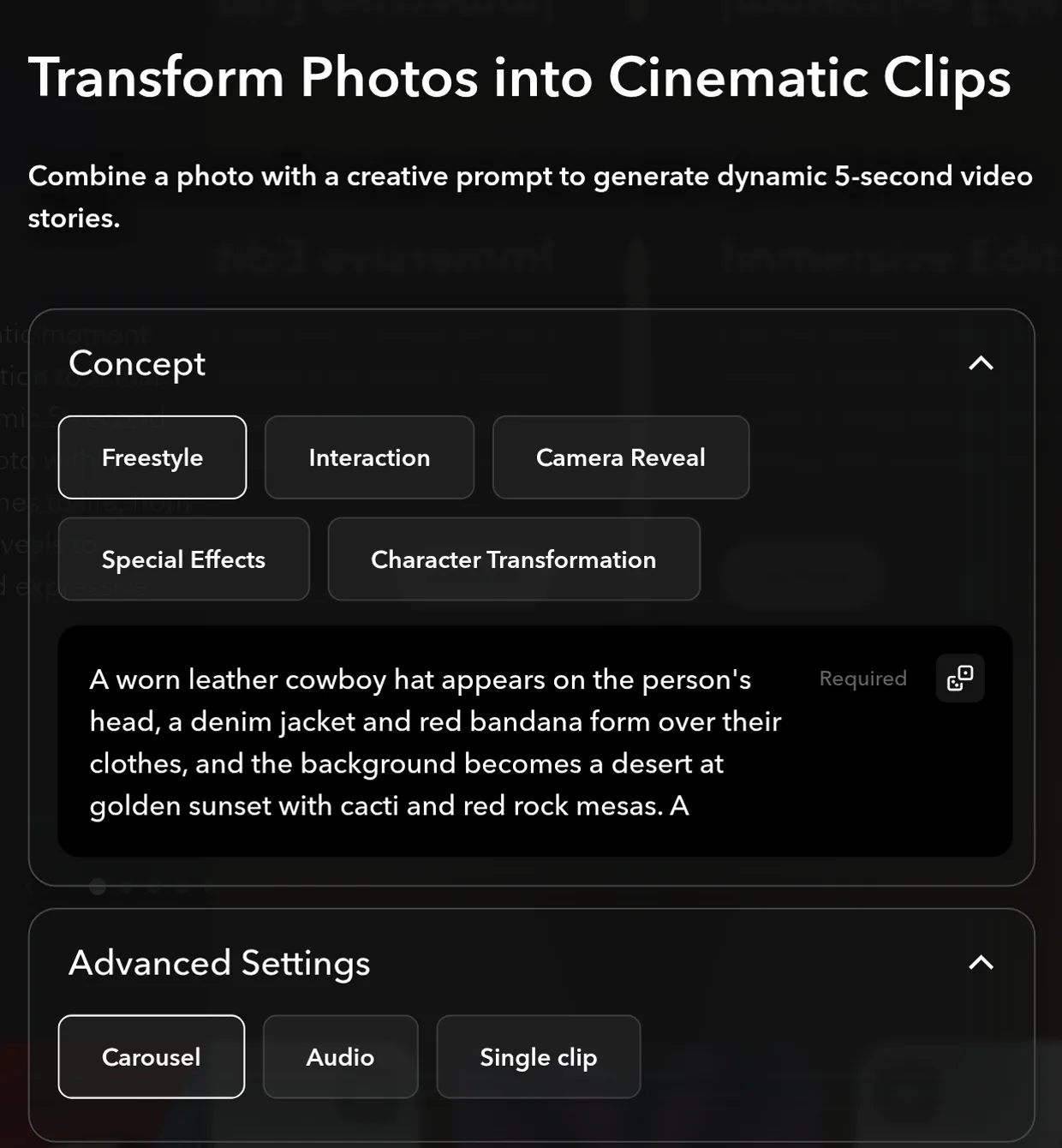
Choose the Clip type under Advanced Settings before you build. It starts on Carousel, which makes up to five clips from one idea, your scene plus four close alternatives, and whoever opens the Lens picks one from a row of round icons. Pick Audio for a clip with sound, which is what the AI Clips Audio block makes, or Single clip for the AI Clips block on its own.
Read the line along the bottom before you build. It prints the sentence that actually gets sent, Create a Lens using AI Clips Carousel of… with your scene on the end, and the highlighted name changes to AI Clips Audio or AI Clips when you pick the other two clip types. If the sentence does not describe the clip in your head, fix the scene rather than the Lens.

Tap Create My Lens when the line reads the way you meant it. From there it works like any other Lens, and make a beauty Lens in minutes walks through changing it one message at a time and publishing it.
You have an AI Clips Lens started from a scene you wrote and a clip type you chose, and you know to check the line at the bottom before you build.